Showing posts with label Iphone. Show all posts
How to Customize Search Results in iphone
Posted by Anbu on Sunday, February 17, 2013
Filed within
Apple,
Apple iphone,
How to,
Iphone,
Iphone tips and tricks,
mobile phone tips and tricks,
Mobile tips and tricks,
Mobiles
Problem:
How to Customize Search Results in iphone
Solution:
Most people probably agree that Spotlight search on the iPhone is useful. But what we all use it for most definitely varies. I use it mainly for launching apps; you might use it for finding emails.
To customize what order things show up in, check out Settings > General > Home > Search Results. From here, you can rearrange the order of your results, as well as turn off the ones you don’t want.
How to Customize Search Results in iphone
Solution:
Most people probably agree that Spotlight search on the iPhone is useful. But what we all use it for most definitely varies. I use it mainly for launching apps; you might use it for finding emails.
To customize what order things show up in, check out Settings > General > Home > Search Results. From here, you can rearrange the order of your results, as well as turn off the ones you don’t want.
How to Send Photos at Full Resolution in iphone
Posted by Anbu on
Filed within
Apple,
Apple iphone,
How to,
Iphone,
Iphone tips and tricks,
mobile phone tips and tricks,
Mobile tips and tricks,
Mobiles
Problem:
How to Send Photos at Full Resolution in iphone
Solution:
It’s great to be able to take photos with your iPhone and then instantly email them to friends and family. But be aware that there are things going on beneath the surface when you choose “Email Photo.”
Your iPhone actually reduces the quality of the image it sends, which gives the recipient faster downloading. If you want to send the full resolution image, tap and hold the image in the gallery to copy it. Then, you can paste it into an email at full res.
How to Send Photos at Full Resolution in iphone
Solution:
It’s great to be able to take photos with your iPhone and then instantly email them to friends and family. But be aware that there are things going on beneath the surface when you choose “Email Photo.”
Your iPhone actually reduces the quality of the image it sends, which gives the recipient faster downloading. If you want to send the full resolution image, tap and hold the image in the gallery to copy it. Then, you can paste it into an email at full res.
Use the Timer to Turn Off Your Music
Posted by Anbu on
Filed within
Apple,
Apple iphone,
How to,
Iphone,
Iphone tips and tricks,
mobile phone tips and tricks,
Mobile tips and tricks,
Mobiles
Problem:
Use the Timer to Turn Off Your Music
Solution:
It’s great to fall asleep listening to your favourite music. However, you don’t your iPhone playing music all night. Apple has provided an easy solution.
Within the Clock app, set a timer for however long you want the music to play. Then, instead of choosing a ring, choose to Sleep iPod when the timer ends.
Use the Timer to Turn Off Your Music
Solution:
It’s great to fall asleep listening to your favourite music. However, you don’t your iPhone playing music all night. Apple has provided an easy solution.
Within the Clock app, set a timer for however long you want the music to play. Then, instead of choosing a ring, choose to Sleep iPod when the timer ends.
How to change the scrub speed in iphone
Posted by Anbu on
Filed within
Apple,
Apple iphone,
How to,
Iphone,
Iphone tips and tricks,
mobile phone tips and tricks,
Mobile tips and tricks,
Mobiles
Problem:
How to change the scrub speed in iphone
Solution:
If you’re trying to find something specific within a track, maybe the previous tip won’t do exactly what you want. Try this: drag the location-in-song-indicator (what’s it really called?) to the spot you’d like. This works okay, but for really fine-grained control, drag your finger down. This will let you adjust the adjust the scrub speed – from Hi Speed to Fine.
How to change the scrub speed in iphone
Solution:
If you’re trying to find something specific within a track, maybe the previous tip won’t do exactly what you want. Try this: drag the location-in-song-indicator (what’s it really called?) to the spot you’d like. This works okay, but for really fine-grained control, drag your finger down. This will let you adjust the adjust the scrub speed – from Hi Speed to Fine.
How to Redeem Promo Codes From Within the App Store
Posted by Anbu on
Filed within
Apple,
Apple iphone,
How to,
Iphone,
Iphone tips and tricks,
mobile phone tips and tricks,
Mobile tips and tricks,
Mobiles
Problem:
How to redeem Promo Codes From Within the App Store
Solution:
Yay! You’ve finally won a contest here on iPhone.AppStorm. You’re on the go when you find out, but you don’t want to wait until you get back to your desk to fire up iTunes.
Here’s what you do: open the App Store app, go to the Featured tab, scroll to the bottom, and tap “Redeem.” Now, tap in that promo code. This also works with iTunes gift cards.
How to redeem Promo Codes From Within the App Store
Solution:
Yay! You’ve finally won a contest here on iPhone.AppStorm. You’re on the go when you find out, but you don’t want to wait until you get back to your desk to fire up iTunes.
Here’s what you do: open the App Store app, go to the Featured tab, scroll to the bottom, and tap “Redeem.” Now, tap in that promo code. This also works with iTunes gift cards.
How to save an image when browsing in iphone
Posted by Anbu on
How to zoom an image or text in iphone
Posted by Anbu on
Filed within
Apple,
Apple iphone,
How to,
Iphone,
Iphone tips and tricks,
mobile phone tips and tricks,
Mobile tips and tricks,
Mobiles
Problem:
How to zoom an image or text in iphone
Solution:
Here’s another great Safari tip that I use all the time: double tap a text column to zoom right into it. You’ll get the best possible reading experience without all the two-finger fiddling. This works with images as well. And speaking of images…
How to zoom an image or text in iphone
Solution:
Here’s another great Safari tip that I use all the time: double tap a text column to zoom right into it. You’ll get the best possible reading experience without all the two-finger fiddling. This works with images as well. And speaking of images…
Tap and Hold a Link for Options
Posted by Anbu on
Filed within
Apple,
Apple iphone,
How to,
Iphone,
Iphone tips and tricks,
mobile phone tips and tricks,
Mobile tips and tricks,
Mobiles
Problem:
Tap and Hold a Link for Options
Solution:
You’ve been in the scenario: you’re reading in Safari, minding your own business, when a link jumps out in front of you, tempting you to follow it. If you’ve got misgivings, you can tap and hold that link.
You’ll get a pop-up showing you the URL hiding inside that link. That pop-up also gives you options to copy the link, open it, or open it in a new page.
Tap and Hold a Link for Options
Solution:
You’ve been in the scenario: you’re reading in Safari, minding your own business, when a link jumps out in front of you, tempting you to follow it. If you’ve got misgivings, you can tap and hold that link.
You’ll get a pop-up showing you the URL hiding inside that link. That pop-up also gives you options to copy the link, open it, or open it in a new page.
How to add sites to home screen in iphone
Posted by Anbu on
Filed within
Apple,
Apple iphone,
How to,
Iphone,
Iphone tips and tricks,
mobile phone tips and tricks,
Mobile tips and tricks,
Mobiles
Problem:
How to add sites to home screen in iphone
Solution:
We all have our favourites sites, our preferred places for daily doses of news or inspiration. You can make these super-easy to access by adding them to your home screen. Simply tap the “+” button in Safari and choose “Add to Homescreen.”
Then, you can give it the desired label and save it. Web developers can give you an extra perk or two here: they can add a special icon that your iPhone will use on the home screen. Additionally, they can make the website run in fullscreen view. Check out AppleInsider or Glyphboard as a home screen app for an example.
How to add sites to home screen in iphone
Solution:
We all have our favourites sites, our preferred places for daily doses of news or inspiration. You can make these super-easy to access by adding them to your home screen. Simply tap the “+” button in Safari and choose “Add to Homescreen.”
Then, you can give it the desired label and save it. Web developers can give you an extra perk or two here: they can add a special icon that your iPhone will use on the home screen. Additionally, they can make the website run in fullscreen view. Check out AppleInsider or Glyphboard as a home screen app for an example.
How to do faster Browsing in iphone
Posted by Anbu on
How to enable international Keyboard on iphone
Posted by Anbu on
Problem:
How to enable international Keyboard on iphone
Solution:
Enable International Keyboards for International TLDs
The .com button is pretty handy; it’s even handier that you can add a few extra TLDs with the tap-and-hold trick. If you find yourself typing a specific international TLD often, you can add it to that pop-up by enabling the appropriate international keyboard.
Go to Setting > General > Keyboard > International Keyboards. Then, once you turn on the ones you want, they’ll show up inside the .com button.
How to enable international Keyboard on iphone
Solution:
Enable International Keyboards for International TLDs
The .com button is pretty handy; it’s even handier that you can add a few extra TLDs with the tap-and-hold trick. If you find yourself typing a specific international TLD often, you can add it to that pop-up by enabling the appropriate international keyboard.
Go to Setting > General > Keyboard > International Keyboards. Then, once you turn on the ones you want, they’ll show up inside the .com button.
How to insert a period on Apple iphone
Posted by Anbu on
Problem:
How to insert a period on Apple iphone
Solution:
Without a doubt, a period is the most often used piece of punctuation. But the period is on the alternative keyboard, and it’s a bit of a pain to switch back and forth between keyboards continually.
The shift-swipe trick is nice, but there’s an even faster move to master: double tap the space bar to get a period and space. This is an optional trick, turned on by default. You can get to it via Settings > General > Keyboard.
How to insert a period on Apple iphone
Solution:
Without a doubt, a period is the most often used piece of punctuation. But the period is on the alternative keyboard, and it’s a bit of a pain to switch back and forth between keyboards continually.
The shift-swipe trick is nice, but there’s an even faster move to master: double tap the space bar to get a period and space. This is an optional trick, turned on by default. You can get to it via Settings > General > Keyboard.
How to scroll to the top in Iphone
Posted by Anbu on
Problem:
How to scroll to the top in Iphone
Solution:
Tap the Status Bar to Scroll to the Top
Maybe you haven’t checked your tweets for a few hours or you’ve just read a lengthy article. In many cases, you’ll want to scroll back to the top of the page. By tapping the status bar at the top of your screen, you’ll by whisked straight back up to the top. This nice tip can turn annoying quite easily, though. Be careful not to hit the status bar accidentally.
The latest version of Instapaper lets you return to where you were if you didn’t mean to tap the status bar. This should be part of every app that scrolls!
How to scroll to the top in Iphone
Solution:
Tap the Status Bar to Scroll to the Top
Maybe you haven’t checked your tweets for a few hours or you’ve just read a lengthy article. In many cases, you’ll want to scroll back to the top of the page. By tapping the status bar at the top of your screen, you’ll by whisked straight back up to the top. This nice tip can turn annoying quite easily, though. Be careful not to hit the status bar accidentally.
The latest version of Instapaper lets you return to where you were if you didn’t mean to tap the status bar. This should be part of every app that scrolls!
How To Use IPhone As External Disk in iphone 3G
Posted by Anbu on Saturday, February 16, 2013
Problem:
How To Use IPhone As External Disk in iphone 3G
Solution:
How To Use IPhone As External Disk in iphone 3G
Solution:
DiskAid is a tool (freeware) for PC and Mac which enables to use your iPhone or iPod Touch as external Disk. With DiskAid you can transfer files and folders via USB between your device and your Computer.
How To Access The Scientific Calculator in iphone 3G
Posted by Anbu on
How To Maximize Your iPhone 3G’s Battery Life
Posted by Anbu on
Problem:
How To Maximize Your iPhone 3G’sBattery Life
Solution :
1. Turn down the LCD. The new iPhone's screen is brighter, but you shouldn't be running this thing at full heat if you want to save battery power. I keep mine at 10% brightness. Change this under Settings -> Brightness.
2. Wi-Fi new network scanning off or Wi-Fi off. While you're not checking data for more than a few seconds at a time, I'd turn off Wi-Fi and in general, I'd turn off Wi-Fi scanning. It uses less power than EDGE or 3G but when you're not using your network connection, you might as well shut it down. Change this under Settings -> Wi-Fi. Same goes for Bluetooth.
3. Toggle off 3G till ready. Here's something I wish Apple had automatically managed. I use 3G for browsing, YouTube, app store purchases when not around a computer, or during important calls. For all other uses, including email, weather checking and Twitter, etc, I use EDGE. This setting is under Settings -> General -> Network.
4. Turn off Vibrate in Games. Playing a game with vibrate happening frequently is an unnecessary battery suck. If you can turn it off, turn it off.
5. Limit use of A-GPS tracking. GPS tracking is still pretty useless after you've gained your bearings, since there isn't a turn by turn navigation mode for driving. I exit out of maps once I've got the directions in my mind, and if I lose myself again, I just start maps up once more.
6. Buy Apps and Songs in iTunes. You can buy songs over Wi-Fi or Apps over 3G, but that doesn't mean you should. I'd recommend buying Apps at your computer if you can help it, and syncing them to your iPhone instead. As an added bonus, you'll be picking up a charge while you're tethered to your computer.
7. Set the Autolock to 1-minute. The iPhone's autolock is good at shutting off the screen if you forget to when placing it in a pocket, purse or just tossing it on a table after a call. I set mine to the most aggressive, 1-minute, but there are times where I set it to 2-minutes. This setting is under Settings -> General -> Autolock.
8. Use programs with 3D less often. Not surprisingly, I've noticed that when I play games rendering 3D, battery life drops. Using the graphics chips more intensely will crank up power usage, but maybe the drain is also because of the nature of gaming: Unlike email or browsing, gaming is a full-time, full attention endeavor that also keeps the CPU, GPU and LCD going full-time. (I'd like to think this is a more useful tip than "don't use your iPhone" but maybe it's not something you can avoid if you're a gaming addict.)
9. Set Push to Off, and Set Fetch Time. Push email isn't that useful for me because I know I'm getting emails all day long and that I have to be checking all the time. Push does use more juice than the fetch mode, which checks for calendar, contact and email syncing at set intervals of 15 minutes to an hour. I set mine to 1 hour unless I'm out of the office. If you seldom update your contacts and calendars, you might even be better off syncing by cable to iTunes, while you pick up a charge.
10. Stay Juiced. If you're at computer or in a car, you should try to use a cigarette adapter or USB cable to pick up a few minutes of charge. Every bit helps!
These tips also apply to a first generation iPhone running OS 2.0.
How To Maximize Your iPhone 3G’sBattery Life
Solution :
1. Turn down the LCD. The new iPhone's screen is brighter, but you shouldn't be running this thing at full heat if you want to save battery power. I keep mine at 10% brightness. Change this under Settings -> Brightness.
2. Wi-Fi new network scanning off or Wi-Fi off. While you're not checking data for more than a few seconds at a time, I'd turn off Wi-Fi and in general, I'd turn off Wi-Fi scanning. It uses less power than EDGE or 3G but when you're not using your network connection, you might as well shut it down. Change this under Settings -> Wi-Fi. Same goes for Bluetooth.
3. Toggle off 3G till ready. Here's something I wish Apple had automatically managed. I use 3G for browsing, YouTube, app store purchases when not around a computer, or during important calls. For all other uses, including email, weather checking and Twitter, etc, I use EDGE. This setting is under Settings -> General -> Network.
4. Turn off Vibrate in Games. Playing a game with vibrate happening frequently is an unnecessary battery suck. If you can turn it off, turn it off.
5. Limit use of A-GPS tracking. GPS tracking is still pretty useless after you've gained your bearings, since there isn't a turn by turn navigation mode for driving. I exit out of maps once I've got the directions in my mind, and if I lose myself again, I just start maps up once more.
6. Buy Apps and Songs in iTunes. You can buy songs over Wi-Fi or Apps over 3G, but that doesn't mean you should. I'd recommend buying Apps at your computer if you can help it, and syncing them to your iPhone instead. As an added bonus, you'll be picking up a charge while you're tethered to your computer.
7. Set the Autolock to 1-minute. The iPhone's autolock is good at shutting off the screen if you forget to when placing it in a pocket, purse or just tossing it on a table after a call. I set mine to the most aggressive, 1-minute, but there are times where I set it to 2-minutes. This setting is under Settings -> General -> Autolock.
8. Use programs with 3D less often. Not surprisingly, I've noticed that when I play games rendering 3D, battery life drops. Using the graphics chips more intensely will crank up power usage, but maybe the drain is also because of the nature of gaming: Unlike email or browsing, gaming is a full-time, full attention endeavor that also keeps the CPU, GPU and LCD going full-time. (I'd like to think this is a more useful tip than "don't use your iPhone" but maybe it's not something you can avoid if you're a gaming addict.)
9. Set Push to Off, and Set Fetch Time. Push email isn't that useful for me because I know I'm getting emails all day long and that I have to be checking all the time. Push does use more juice than the fetch mode, which checks for calendar, contact and email syncing at set intervals of 15 minutes to an hour. I set mine to 1 hour unless I'm out of the office. If you seldom update your contacts and calendars, you might even be better off syncing by cable to iTunes, while you pick up a charge.
10. Stay Juiced. If you're at computer or in a car, you should try to use a cigarette adapter or USB cable to pick up a few minutes of charge. Every bit helps!
These tips also apply to a first generation iPhone running OS 2.0.
How To Access IPod Controls Or Phone Favorites Instantly
Posted by Anbu on
How To Fast Forward/Rewind Music & Video
Posted by Anbu on
How To Switch Punctuation Keys To Alphabet Keys Quickly in Iphone 3G
Posted by Anbu on
Problem:
How To Switch Punctuation Keys To Alphabet Keys Quickly in Iphone 3G
Solution:
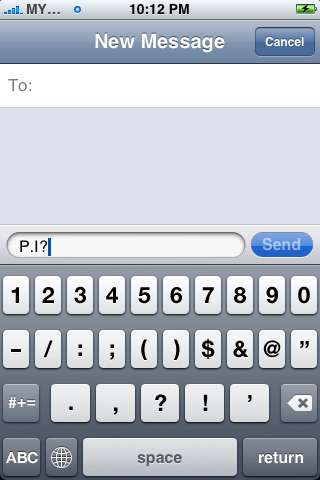
Mode changes in between the punctuation keys and alphabet keys are pretty annoying. To solve it, just press the “.?123″ key, but don’t lift your finger as the punctuation layout appears. Slide your finger a half inch onto the period or comma key, and release. The ABC layout returns automatically.
How To Switch Punctuation Keys To Alphabet Keys Quickly in Iphone 3G
Solution:
Mode changes in between the punctuation keys and alphabet keys are pretty annoying. To solve it, just press the “.?123″ key, but don’t lift your finger as the punctuation layout appears. Slide your finger a half inch onto the period or comma key, and release. The ABC layout returns automatically.
How To Force Quit An App in iphone 3G
Posted by Anbu on


